eNVD - User Guide
Overview
eNVD integration allows authorised users to securely retrieve digital NVD consignments from myMLA and assign them directly to NVDs in Stockyard.

Before continuing with this guide, ensure the required setup has been completed so eNVDs can be retrieved.
Refer to eNVD – Authentication & Configuration for setup instructions.
When an eNVD is assigned:
- The eNVD image is attached to the NVD
- Mapped NVD fields are automatically populated and locked to the eNVD responses
- eNVDs can be assigned, unassigned, and re-assigned as required
- The same eNVD can be reused across multiple sales
Below is an overview of the changes to the NVD screen when using eNVDs.

Note:
- Once assigned, an eNVD is treated the same as a standard NVD within Stockyard.
- For Agents, the eNVD Search grid is filtered by the Consignee PICs configured against the Agent in the Address Book.
- An Agent can have up to five Consignee PICs.
- If a consignment is sent to a PIC that is not listed against the Agent, the eNVD will not appear in eNVD Search grid.
Assigning an eNVD
Auto Assign on NVD Number
If Auto Assign on NVD Number is enabled:
- Create or open an NVD within a Sale
- Start typing the NVD number and then Tab out
- If a matching eNVD is found, Stockyard prompts you to assign it
- Confirm by selecting Yes to assign the eNVD
The fields that you can edit once you have assigned the eNVD are Brand, Expected RFIDs, Received Head/Comment/Pen and Extra Information
View/Search eNVDs
If View/Search eNVDs is enabled:
- Create or open an NVD within a Sale
- On the right-side, you will see eNVD Search grid
- Filter available eNVDs using one or more of the following:
- Movement Date Range
- Toggle the following:
- Show Assigned
- Show Incomplete
- Search for:
- PIC
- Vendor Name
- NVD Number
- Assigning an eNVD
- Assign by double-clicking the record, or
- Right-click → Assign eNVD,

Notes
- Colour coded consignments:
- Not Assigned - Light Tan
- Assigned - Dark Tan
- Incomplete - Light Blue
- The default date range is ±7 days from the Sale Date
- Expand the date range if consignments are older
- Enable Show Assigned to view eNVDs already assigned to another sale
(eNVDs are not sale-bound and can be reassigned if operationally appropriate)
What can you do when an eNVD has been assigned?
Most of the fields will be greyed out meaning you cannot change the value. Only the fields that are assessable can be changed
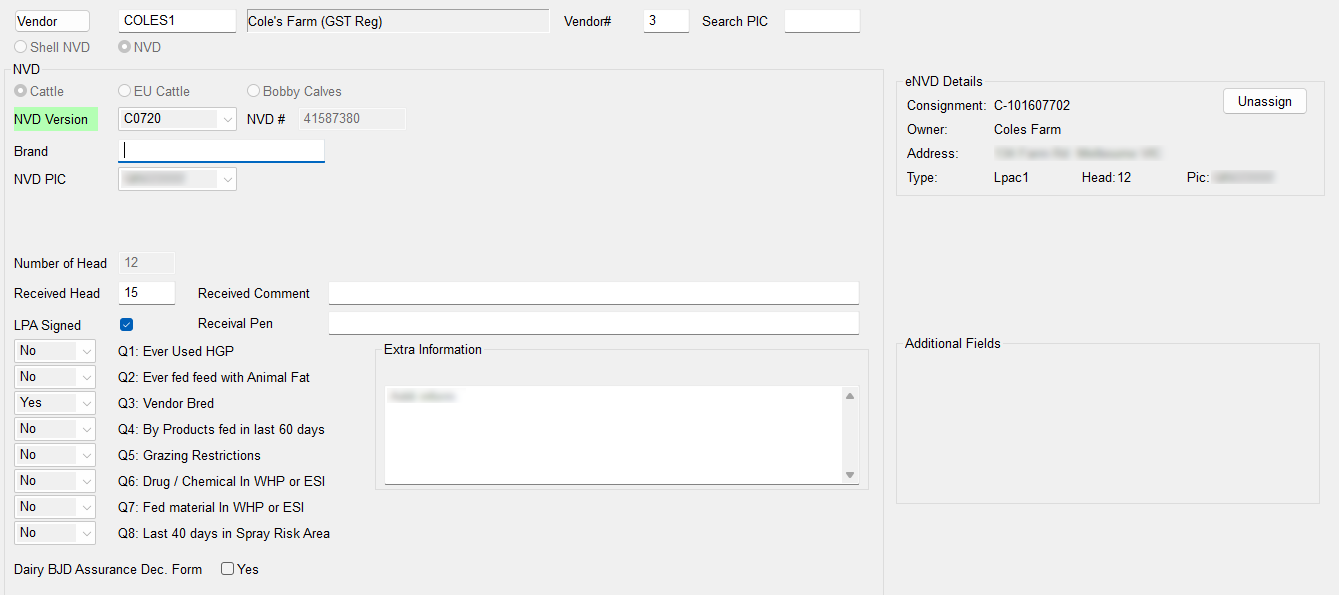
- All eNVDs will attach an image once a eNVD has been assigned, this image will be replaced if you assign a different eNVD.
If the wrong eNVD is assigned:
- Select Unassign
- Assign the correct eNVD