User Lists
This articles helps you understand how to use the functions of the User Lists in Stockbook.
1. Set up folder for user lists, user lists or delete user list
The setup user list screen allows you to add, edit and delete any user lists you have configured. Note that you can move user lists into folders by dragging and dropping into the folder.
- Click the User Lists shortcut
- Click Setup user lists
- Select add New User List, New Folder or Delete depending on you your intention is.
2. Adding Animals to the user list
- Select the animals to add to the user list
- Click the User Lists shortcut Icon
- Select Add selected animals to user list
- Select the newly created list
- Click OK
The animals will now be added to the selected user list.
NOTE
- The animals you have selected will appear in the "Selected Animals" section. The number of animals listed will be displayed at the bottom of that list.
- Folders can be expanded by clicking the small arrow in front of the folder.
- If you want the animals to be appended to the list then ensure that " Append to list " is selected
- If you want the list cleared before adding those animals ensure " Clear list first " is selected.
3. Viewing animals added to a userlist
- Click in Yard Sheets/User List Filter
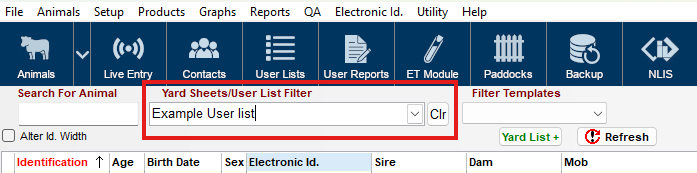
- Type the name of the user list and tab
- Your selected animals will appear
- Click Clr to exit this filter. You will be taken back to the main animal screen.
4. Add progeny of selected animals to user list
Selecting this function will insert all of the progeny of the selected animals into the animal list.
5. Compare selected animal to user list
If you wish to compare the list of selected animals to those in a user list you can use this function.
The following screen will appear:
- Select the user list you would like to compare to and then press the print preview button to see the list of selected animals that are NOT in the user list.
- To save that list of missing animals, select Save to List
- Now select the list to save the animals to i.e. Temporary Selection
6. Filter for User Iist
- Click Filter
- Select the User list from the dropdown
- Select OK
Article ID 875