Drafting in Live Entry
1. Setting Up Drafting in Live Entry
How to use the Drafting function in the Live Entry Screen.
Start Live Entry
- Click the Live Entry shortcut
- Select the required template
- Click Start Live Entry
Enable Drafting
- In Live Entry, got to Setup > Drafting
- Tick the Enable Drafting box
- Select the Type of Drafting from the drop down menu
Selecting Gates & Setting Draft Criteria
- Tick the boxes for the Gates you wish to use
- Click on the Set Draft Criteria button
- Using the drop down menus, enter the information to build the draft criteria
- Click Add to List
- Repeat for any of your drafting criteria
- Click OK to confirm the criteria
Moving through a Specific Gate (Optional)
For animals going out a specific gate to also be moved into a Mob/Group/Paddock/User List in Stockbook:
- Click on the " Move to... " button
- Choose where to send the drafted animals
- Click on OK to confirm choices
Set Default Gate
- Draft Setup requires a Default Gate
- This is the gate that gets opened for any animal that does not meet the criteria of any of the other gates
The drafting gates will now form part of the Live Entry Template
2. Draft Menu
To access the draft menu simply right-click on one of the draft lights (or press and hold on a touch screen device). A menu will appear as below:
The option operates as follows:
1. Draft to this gate - this will draft the animal to the gate you right-clicked on. Drafting must be enabled.
2. Zero draft count - this will zero/reset the draft count for the selected gate.
3. Increase draft count by x - this will increase the draft count for the selected gate by the number specified.
4. Reduce draft count by x - this will reduce the draft count for the selected gate by the number specified.
3. Switching Drafting Mode
The following demonstrates how to intervene in the drafting process within Live Entry.
This may become necessary if you wish to draft an animal in a direction contrary to the drafting rules, or you need to momentarily pause the drafting to treat a sick or injured animal.
The drafting window has an additional Square (highlighted in the picture below).
Pressing this button toggles the drafting between different modes:
- Enabled: drafting will operate as normal (as you have set it up).
- Manual: any automatic drafting is suspended and you can now manually select the draft gate by pressing one of the draft buttons.
- Disabled: all drafting is disabled, this includes manual drafting.

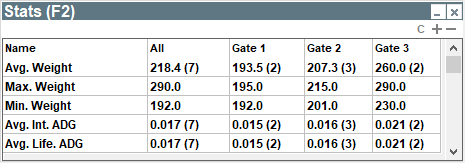
4. Draft Statistics Screen
To display the draft statics screen in the Live Entry template
- Go to View > Data Windows > Statistics.
- The stats screen displays the average, maximum and minimum weight recorded, and the interval (last) and overall (lifetime) ADG for all animals and draft gates.
- The average numbers are also followed by a number in brackets and this is the number of animals used in the average calculation.
- To clear the stats you can press on the "C" button in the top right of the stats screen. Note that this function will also clear the handled animals and tally list.