How to Lookup RFIDs in Stockyard Mobile
Overview
This process is used when an animal has moved into the wrong pen, is mixed in with other stock, or you need to confirm which lot an RFID belongs to. By scanning the RFID in Stockyard Mobile, you can view the linked lot details, including the agent, lot number, vendor, buyer, and buyer way, to help identify where the animal belongs.
How to Lookup an RFID
RFID Lookup and RFID Lookup for Purchaser is available in Stockyard Mobile version 1.67 and above.
Please ensure Stockyard Mobile has been updated from the App Store or Google Play Store before using this feature.

RFID Lookup Results
When scanning RFIDs, Stockyard Mobile will show whether each RFID is:
- In another sale
- In an inactive lot
- Not found in the sale
- Associated with a different purchaser (Purchaser RFID Lookup)
- Associated with the selected purchaser or sale
Note: RFIDs with a white background are associated with the selected purchaser or sale

Exiting the RFID Lookup screen will clear the history of Scanned RFIDs
RFID Lookup
The RFID Lookup is used to check RFIDs against a sale and check the lots the RFID tags belong with.
Steps
- Open the side menu in Stockyard Mobile
- Scroll down and tap RFID Lookup
- Scan the RFID tags
- Review the lot details displayed for the scanned RFID
The last scanned RFID will appear at the top
 Note: You will need to scroll right across the screen to view all available information.
Purchaser Verify RFID Lookup
Purchaser Verify RFID Lookup is used to check RFIDs against a selected purchaser.
Steps
- Open the side menu in Stockyard Mobile
- Tap Purchaser Summary
- Select the Agent, if you are not signed in as an Agent
- Select the Purchaser you want to verify RFIDs against
- Tap Verify RFIDs in the top-right corner
- The RFID Lookup screen will open for the selected Purchaser
- Scan the RFID tags to verify them
The last scanned RFID will appear at the top
Note: You will need to scroll right across the screen to view all available information.[LEGACY] Steps to Lookup an RFID
For Stockyard Mobile version 1.66 and below, use the older Scanning method below.
1. Open Scanning from the Main Menu
From the Main Menu in Stockyard Mobile, open Scanning
2. Tap New Booking
3. Select an Agent (Non-Agent Employees)
If you are signed in as an Agent, skip to 4. Otherwise, choose any agent from the list.
It does not matter which agent is selected for this lookup, as the system will still
display the agent that is actually associated with the scanned animal.
display the agent that is actually associated with the scanned animal.
4. Tap RFIDs
In the top-right corner, tap RFIDs
5. Scan the Animal RFID
Scan the animal’s RFID.
Once scanned, the RFID will appear in the list. If it is already associated with another lot,
it will display in orange, indicating that the animal belongs to another lot in the sale.
6. Review the Scanned RFID
Locate the scanned RFID in the list, then tap the + icon under the Message column to open the lot details linked to that animal.

If you are checking multiple animals, continue scanning each one as you go. If the list gets too long or complicated, you can tap the three dots in the top-right corner and select Remove Foreign to clear those foreign RFIDs from the list.
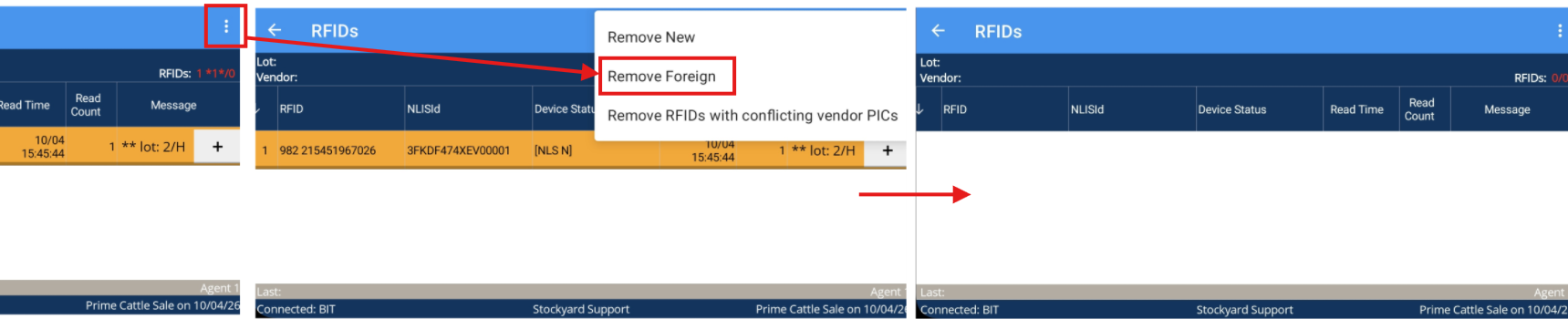

When you are finished, tap the < arrow to go back and out of the New Booking screen. It will not make changes to any other lots in the sale.
This lookup process is only being used to identify the animal’s correct lot details and does not change the sale or move the RFID from its existing lot.