How to check EU Status of Purchasers
Overview
From Stockyard version 5.14, you can check the EU eligibility status of purchaser PICs within a Sale.
Once the Purchaser EU Check has been performed, the purchaser's EU status can be viewed in the Purchaser Ways tab and is also used in the following reports:
- EU Reconciliation Report
- Post Sale EU Check Report
This allows you to confirm whether livestock sold with EU status have been allocated to purchasers who are eligible to retain that status.
Perform a Purchaser EU Status Check
- Open the Sale you want to check.
- Select the Purchaser Ways tab.
- Locate the EU column, which appears after the purchaser PIC column.
 This column displays the EU status returned for each purchaser PIC after the check has been completed.
 - From the Sale, go to Special Features.
- Select NLIS.
- From the available NLIS options, select:Purchaser EU Check
- Click OK to submit the request.
Note: The NLIS interface refreshes approximately every 60 seconds to process NLIS requests that have been submitted. The results may therefore not appear immediately.
How to check the Purchaser EU Status
After the Purchaser EU Check has been processed:
- Return to the Purchaser Ways tab.
- Locate the EU column.
- Review the EU status shown against each purchaser PIC.
This information can then be used when reviewing the Sale's EU reporting.
Available EU Reports
EU Reconciliation Report
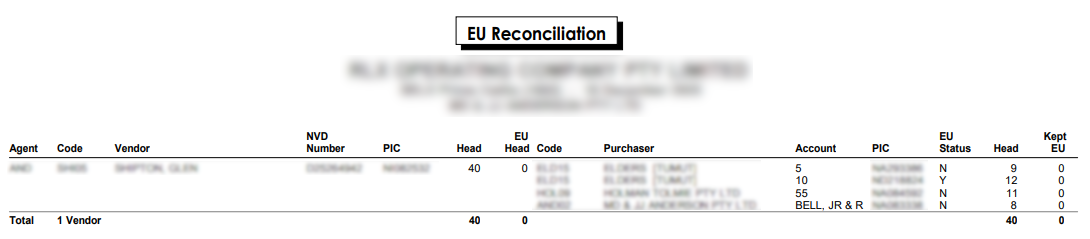
The EU Reconciliation Report helps confirm what happened to livestock that entered the Sale with EU status.
The report tracks livestock that:
- were supplied on an EU NVD, and
- had an EU status of Y recorded against their RFID.
It then shows how those livestock were allocated to purchasers.
The Kept EU column shows how many head retained their EU status based on the EU eligibility of the purchaser they were allocated to.
This report is useful for identifying whether EU livestock were sold to purchasers who were eligible to retain their EU status.
Post Sale EU Check Report
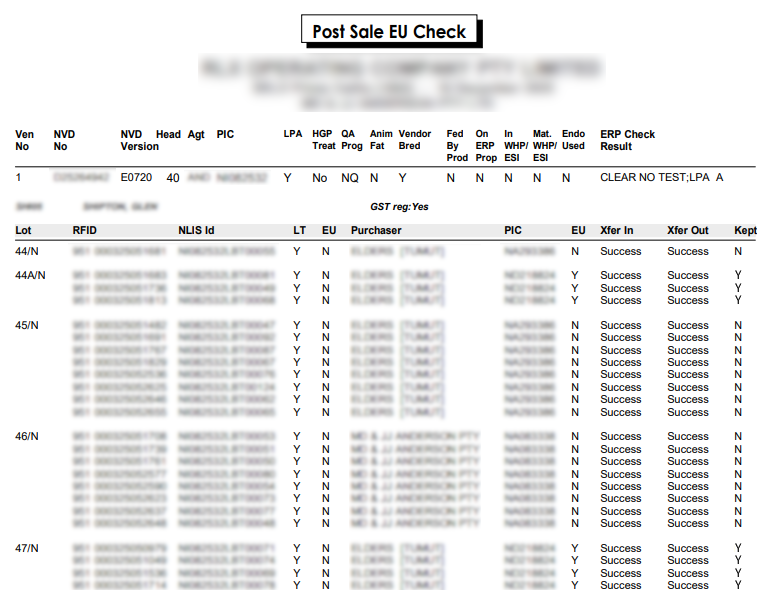
The Post Sale EU Check Report provides a more detailed RFID-level check after the Sale.
For each RFID, the report can show:
- the animal's EU status
- the purchaser it was allocated to
- the purchaser's EU eligibility
- transfer results
- whether the animal retained its EU status
The report also compares the number of RFIDs read against the expected head count.
This helps identify:
- missing RFIDs, where fewer animals were read than expected
- unexpected RFIDs, where additional or unrecognised RFIDs were detected
- animals that may have lost their EU status due to the purchaser they were allocated to