Gallagher TWR-5 - Connecting as a Weigh Scale Only
About the Gallagher TW & TWR series
The TWR series
All Gallagher TWR devices are a weigh scale and reader, meaning it has an EID reader built into the unit.
The Gallagher TWR series is a data logger. A datalogger brings in multiple strings of data e.g. EID, weights, traits etc.....
A Gallagher TWR series has the option to be set as a weigh scale only OR a weigh scale and reader combined.
The TW series
All Gallager TW devices are a weigh scale only and therefore only bring in the weight.
All Gallagher TW devices are connected as Gallagher/Ruddweigh KM3/300..800 in SB
Note, a Gallagher TW series can be set as a datalogger - i.e. when paired to another device such as a reader and then connected to SB - not recommended
It is important to identify which series and model you are connecting.
The Model can be found on front of the device below the screen.
The TWR-5
The TWR-5 can be connected as a Datalogger (scale and reader combined) or as a Ruddweigh (scale only).
Connecting a Gallagher TWR-5 as Ruddweigh (scale only)
When connecting the Gallagher TWR-5 to Stockbook as a Ruddweigh Scale which only brings in the Weight follow the steps outlined below.Ensure Live Entry is closed while connecting the device.
When connecting the Gallagher TWR-5 to Stockbook as a Ruddweigh Scale which only brings in the Weight follow the steps outlined below.
Ensure Live Entry is closed while connecting the device.
On the Gallagher TWR-5
- Turn on the Gallagher TWR-5
- Click on the settings cog at the right of the screen
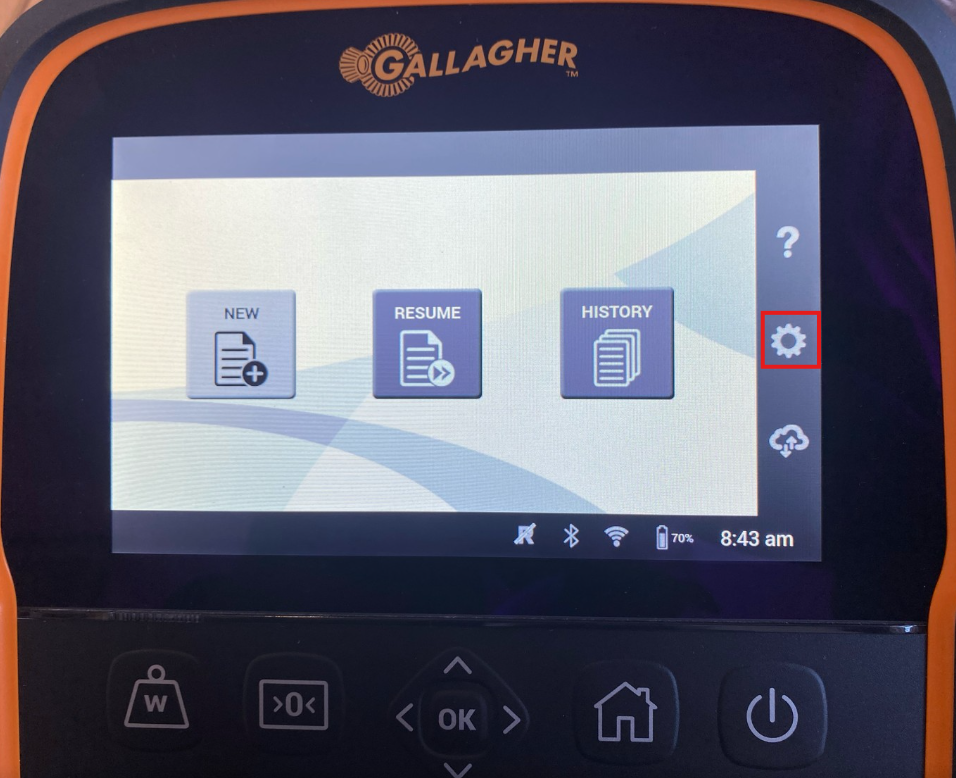
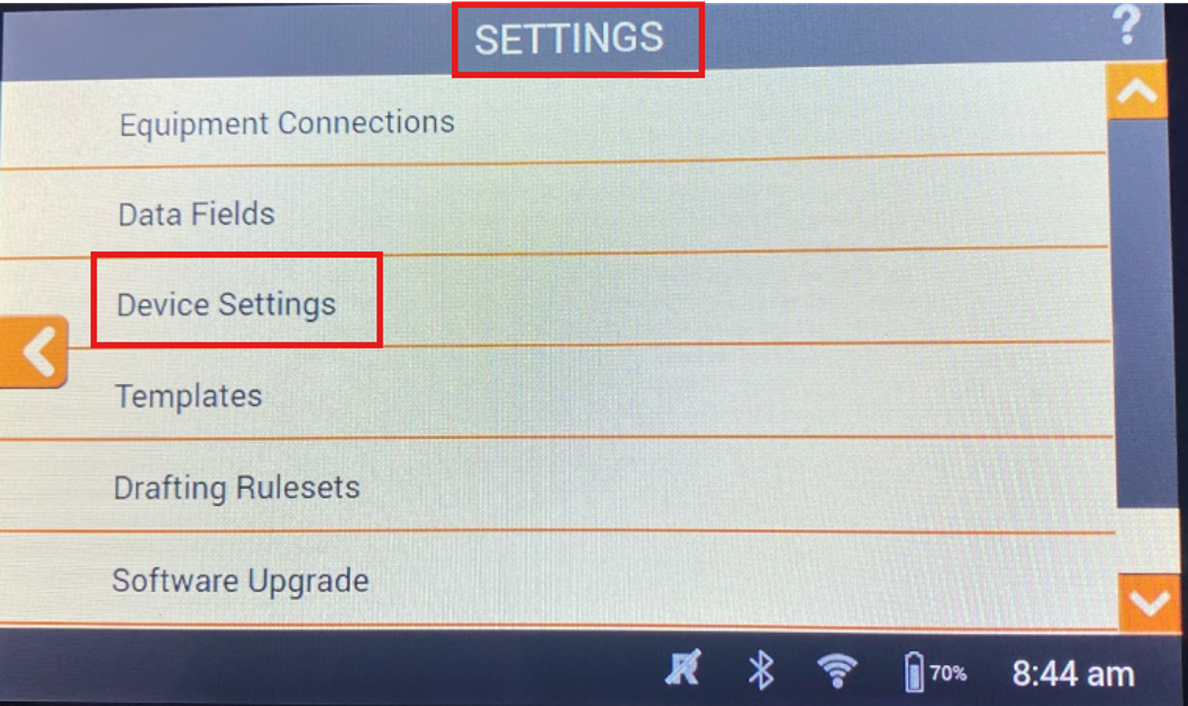
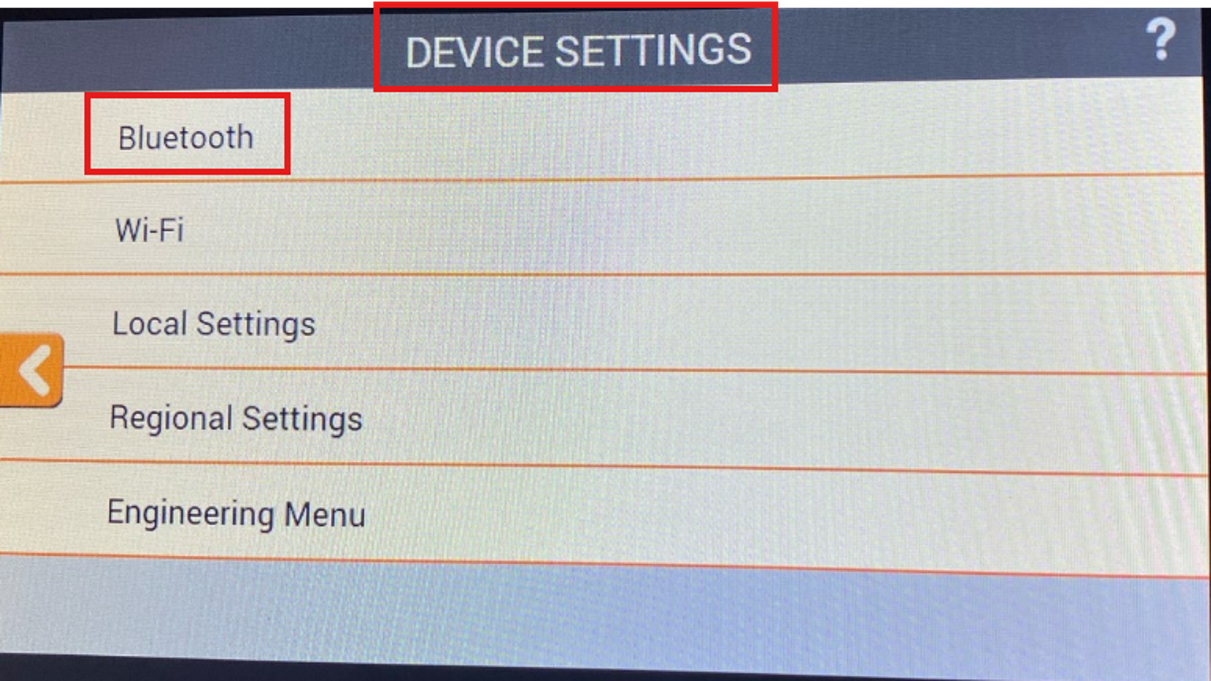
- Click on Device Settings > Bluetooth
- Enable BT should be ticked
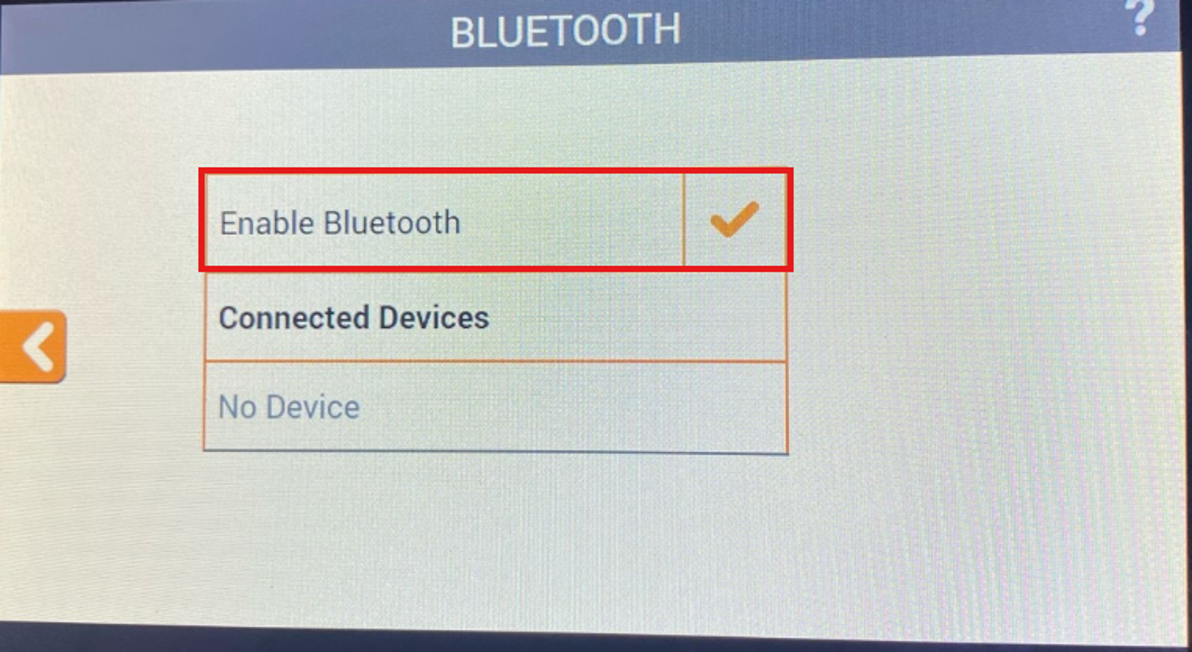
- Below connected devices it should say no device
- Leave the TWR-5 on this screen.
On the Computer- On the computer navigate to Bluetooth & Devices
- Click Add Device
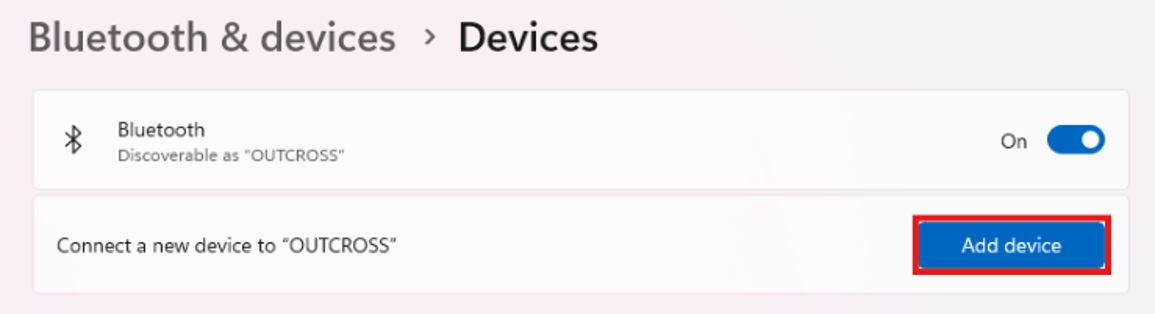
- It may be necessary to click 'Show all devices' to select the device
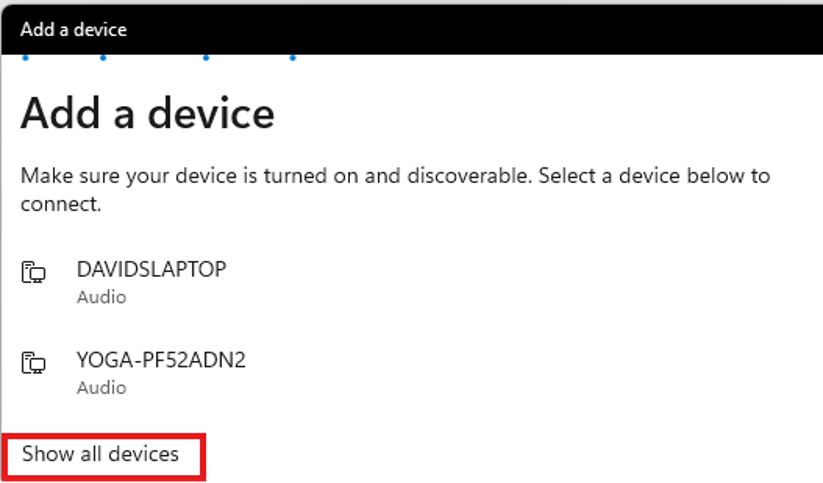
- Select the device, click Connect and accept the Pin code that appears.
Accept the pair code that appears. 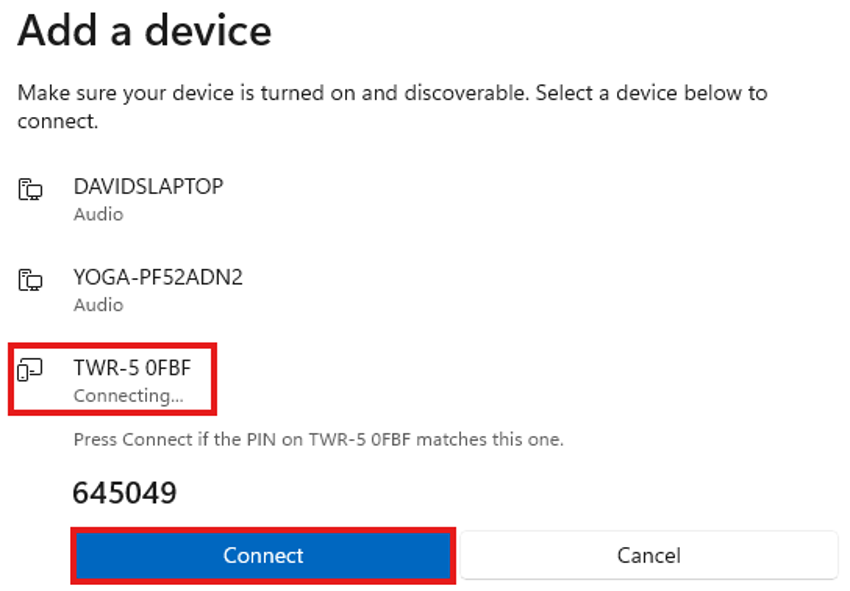
- Click Done. The scale will now be connected to the computer.
- Go to more Bluetooth settings, select COM tab and make note of the Outgoing Com Port number
- Close both Bluetooth windows
In Stockbook To connect the TWR-5 as a Ruddweigh - Go to Electronic Id. Tab > Setup
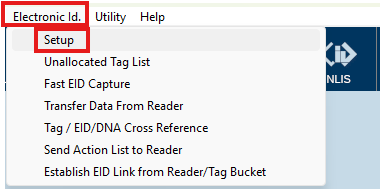
- From the 'Scales' dropdown select (NB: COM Port IS required: It will likely be a red light on connection). select gallagher ruddweigh
- Select Manual Setup in the 'Scales' section
- Select the COM port number you noted in the bluetooth connection process.
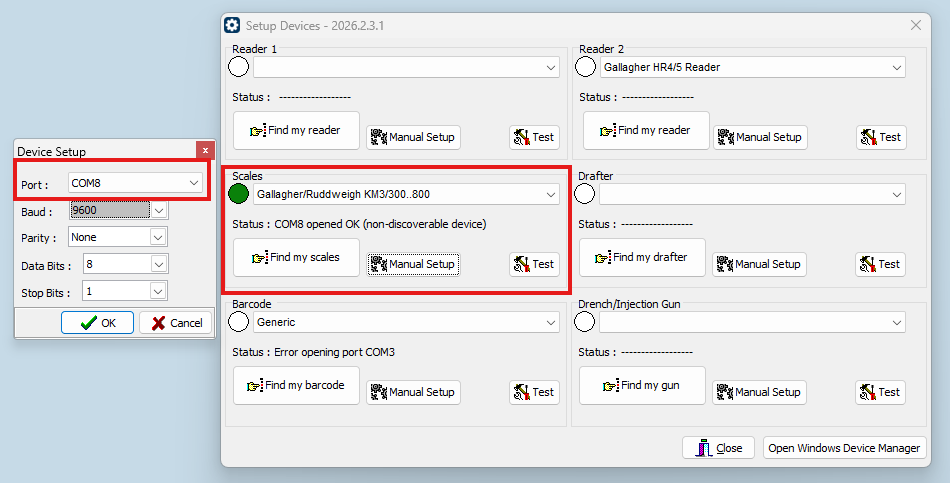
- Turn on the Gallagher TWR-5
- Click on the settings cog at the right of the screen
- Click on Device Settings > Bluetooth
- Enable BT should be ticked
- Below connected devices it should say no device
- Leave the TWR-5 on this screen.
On the Computer
- On the computer navigate to Bluetooth & Devices
- Click Add Device
- It may be necessary to click 'Show all devices' to select the device
- Select the device, click Connect and accept the Pin code that appears.
Accept the pair code that appears.
- Click Done. The scale will now be connected to the computer.
- Go to more Bluetooth settings, select COM tab and make note of the Outgoing Com Port number
- Close both Bluetooth windows
In Stockbook
To connect the TWR-5 as a Ruddweigh
- Go to Electronic Id. Tab > Setup
- From the 'Scales' dropdown select (NB: COM Port IS required: It will likely be a red light on connection). select gallagher ruddweigh
- Select Manual Setup in the 'Scales' section
- Select the COM port number you noted in the bluetooth connection process.
In Live Entry
- Go to the Live Entry home page - Do not select a template at this stage. This is Vital for the TWR-5 to respond.
Back to the TWR-5 - Ruddweigh settings
The computer name should now appear on the TWR-5 and the BT icon on the taskbar should go from grey to orange.
- Click on the computer name
- Will say 'Connected to master' on the to right
- Click back arrow 3 times to go to Settings
- Click Equipment connections
- In data device 1 or 2 it should say Ruddweigh.
- If it does NOT say Ruddweigh it will need to be changed .
To change to Ruddweigh,
- Click the computer name
- Click Settings
- Click Type
- Tick Ruddweigh
- Now Click View Options - Tick all options with the except the last 2 options.
- Untick Send on Weight Lock
- Untick Send on Weight Change
- Click Done
- Click Save
- You will now be back to the main screen
- Click Resume - You should now see the weight on the scale
- Close Live Entry down - the orange BT icon should go grey
- Open Live Entry again and the BT light should go orange (you have a connection)
- Select template
You are now ready to start Live Entry!
Troubleshooting and tips
- To shut the TWR-5 down, go to device settings, local settings and shut down
- The device may need a software upgrade. To upgrade Software, go to Settings, Software Upgrade.
- At no point should the screen say PC smartphone.
- Ensure the load bars have been connected
- Gallagher W0 will not connect via BT. They are the most basic scale. The bluetooth connection is a slow speed, enough to connect to APS to send the session data, but not enough to connect to any third party hardware. It will only connect to a phone.
Please note this article is intended as a guide only. Future device updates may alter the way the device is connected. If you encounter any difficulties with connecting your device please do not hesitate to contact Outcross Systems support.