Butcher/Debtor's Insurance
Butcher, otherwise known as Debtor's Insurance is taken out by the Agent in the event of non-payment of purchases. This is not an applicable charge to Sale Yards.
For agents using the Accounting package, the Butcher's Insurance Report should be run for the period and compared to the Sale Summary (detailed) generated in Livestock for the same dates as the period, i.e. if your period has run from the 5th of the month to 8th of the following - these are the dates you use for the Sale Summary in Livestock > Reports. The charges will be found under Agent charges both halves of the report.
1. Update an Existing Charge
Check if the charge already exists
Click on Maintenance > Charge,
or use the Charge button displayed on the Main Livestock screen to take you to the list of available charges in Stockyard.
Update the details, or

Previous sales will only be affected if they are reopened and updated.
Clone the charge
If you have a new insurer, and update the new details.
See step 3 below to add the new charge details to all sale types.
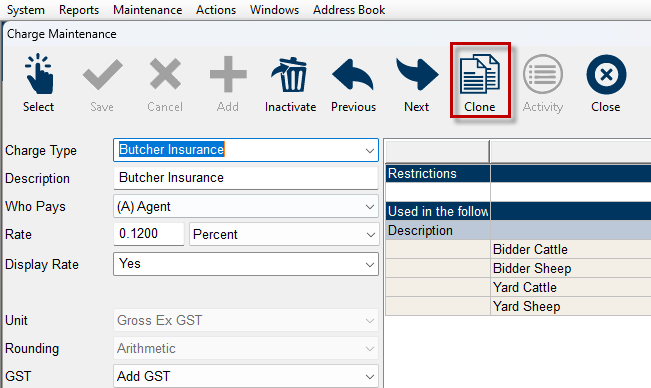
b. Save the details

DO NOT UPDATE ALREADY CLOSED SALES. The new charge details will over-ride the old.
2. Make a New Charge:
If you don't have Butcher Insurance setup, or significant details have changed to the existing charge eg insurer, it is better to make a new charge.
a. Click on the '+'/Add button in Charges
b. Select Butcher Insurance from the drop down
Complete the rest of the details as follows:
c. Agent is the default setting for Who Pays.
d. Add the rate that you are being charged as a Percent.
e. Leave the Display Rate as Yes. It will never appear on invoices.
f. Decide on the GST treatment.
g. If you are using the Accounting Module, please add the:
i. Account i.e. the client account for the insurer (listed in Address Book)
ii. Ledger expense account e.g. Insurance/Yards Expenses
iii. Expense Classification - Not Applicable - leave blank
h. Once all the details are included, click on Save.

For every active sale type you have listed, you will need to add the new sale charge created in Step 3.
Add/Check the new Butcher Insurance charge in all sale types
i. Click on New
This will take you to the Charge screen
ii. Right-click on the correct charge and select attach to sale type, or
If you open the charge, click on the paperclip (far right) to attach.
The Sale Types that contain this charge will be displayed on the right hand side once this charge is added to your sales.
Associated Reports
Butcher's Insurance Report (Accounting module)
This can only be run from the Accounting module. If not using the Accounting module, please use the Sale Summary Detailed in Livestock > Reports for the range of dates in the period that is being report..
Only generate this report after the period/month is closed.
Any updates made after the end of the period will not be reflected in the Journals once the period has rolled over. Corrections will fall into the current period.
In Accounting:
Go to Reports > Butcher Insurance Detail or Butcher Insurance Report (summary).
Select the period:

If you select the required month in the End Period it will change the start month for you.

Ensure the End of Period has been performed and that there are no more changes to be made.
Any updates that have been made post End of Period will not be reflected in this report.
Report Display Options
When you click on the Output To dropdown, the available Print Options are:
On the screen to check the details,
Email or
Export as a csv - use to send to the insurance company.
Sale Summary or Sale Summary Detailed (Livestock module)
Run the Sale Summary (simple) to get the totals for Butcher's Insurance under Agent Charges. If this report does not correspond with Accounting's report, it is usually to do with the dates or updates. In this case, the Sale Summary Detailed report should be run as it documents each sale charge per purchaser in the top half of the report and as a summary per sale in lower half of the report for the period and the discrepancy can be found.
Livestock > Reports > Sale Summary for an overview or detailed to match individual charges.
Use dates matching the report period.
Purchasers with Butcher Insurance (Address Book)
To check or create a list of contacts given to you by the Insurance company use this report in Address Book to identify who is already on the list for Butcher's Insurance/missing and needs adding:
1. Open Address Book
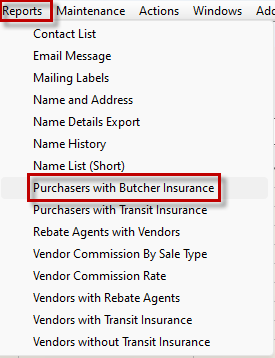
Select Reports > Purchasers with Butcher Insurance from the dropdown menu.
If you are in another module, click Address Book > select Name on the Tool Bar Menu at the top of the screen to open Address Book.
Select Reports > Purchasers with Butcher Insurance
2. Click on Generate Report to view your list.