Adding DNA Samples into Stockbook
There are a number of options for entering DNA samples into Stockbook.
- Using a barcode scanner,
- Manually typing samples into Live entry, or
- A master CSV import
Using a barcode scanner
- Ensure the barcode scanner is connected to the computer
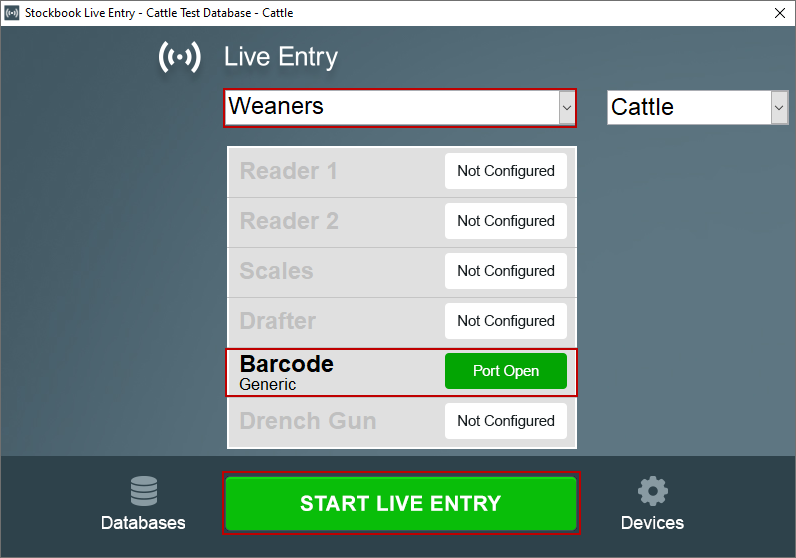
- Open Live Entry
- Choose a template you will be using on the day.
- Click Start Live Entry
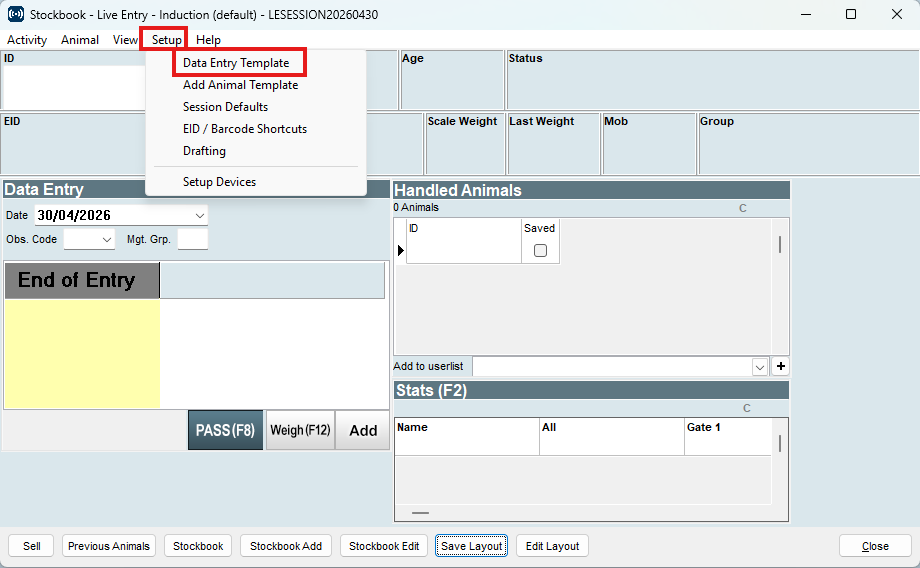
- Select Setup
- Select Data Entry Template
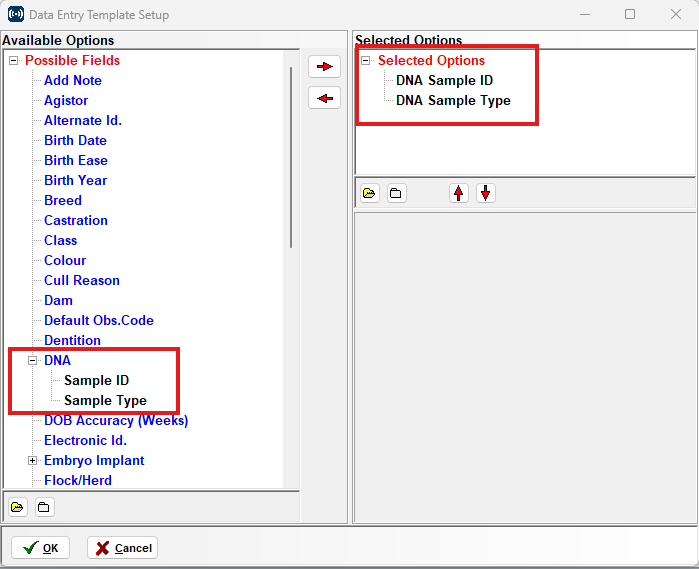
- Click the " + " to expand the DNA sub-options
- Use the arrows to move the sub fields (Sample ID and Sample Type) to Selected Options.
- Click OK
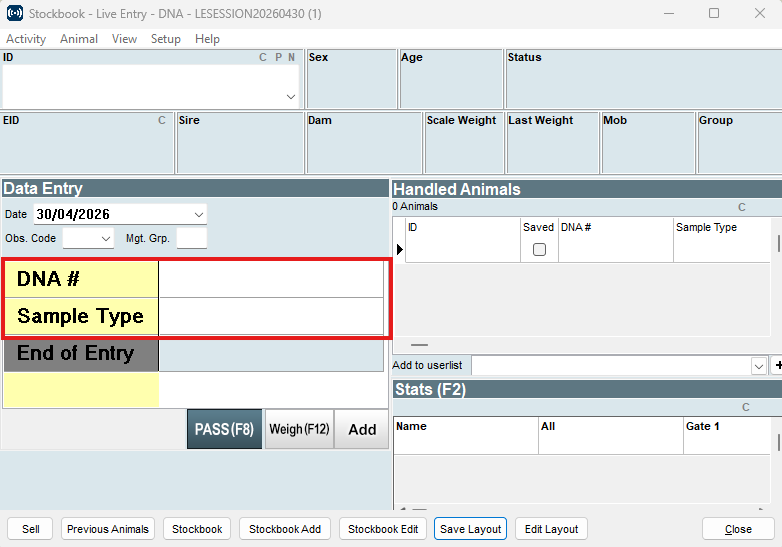
- The template will now show the fields you added.
- If it is a new template, name the template and click OK
- If it is an existing template click Save Layout to save any changes made.
- Now bring the first animal through and Scan in the DNA # using the QR code on the end of the TSU or Hair Card
- Choose the Sample Type
Note: The Sample Type will be remembered by Live Entry once the first animal is saved
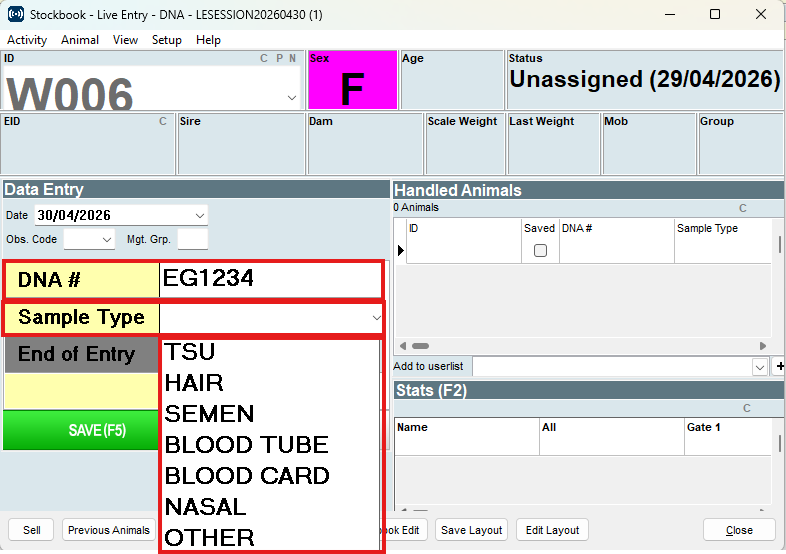
- Click Save (F5)
- The DNA status on the main animal screen will reflect as 'Sample Taken'
- The DNA sample will appear in the DNA table on the main animal screen, for each respective animal.
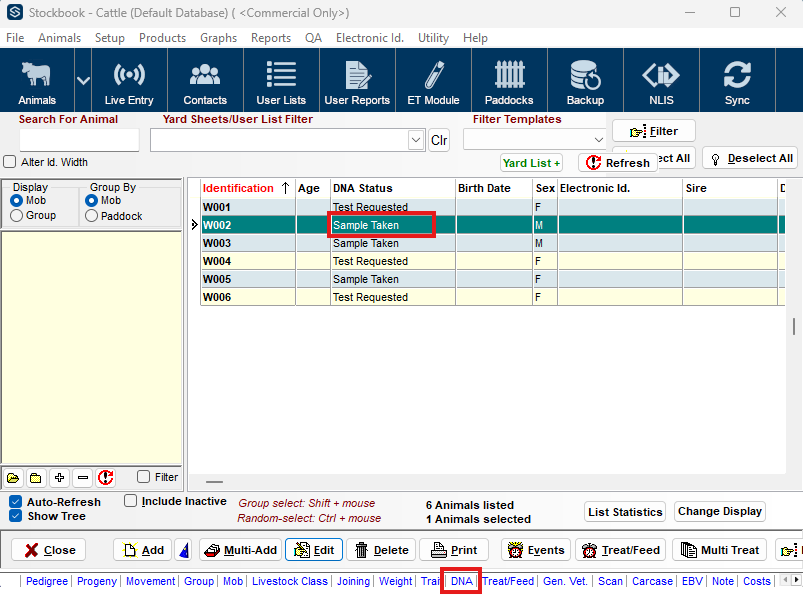
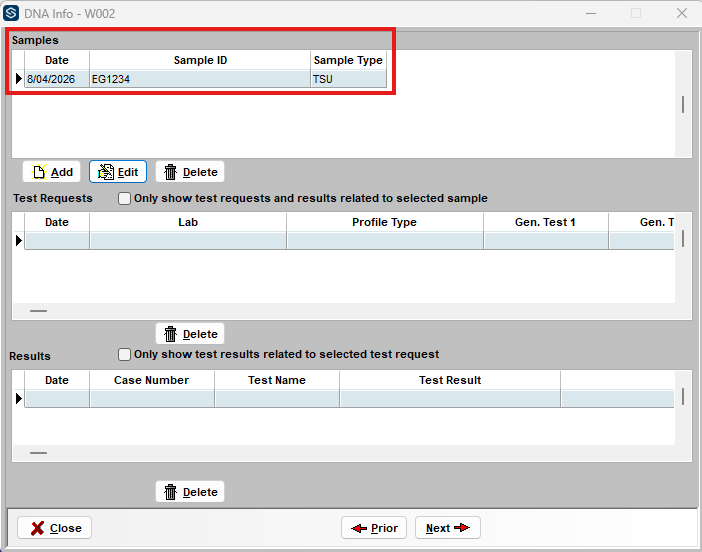
- A new window will appear and you should be able to observe the collected DNA data including
- Date of collection
- Sample ID
- Sample Type
- Choose a template you will be using on the day.
- Click Start Live Entry
- Select Setup
- Select Data Entry Template
- Click the " + " to expand the DNA sub-options
- Use the arrows to move the sub fields (Sample ID and Sample Type) to Selected Options.
- Click OK
- The template will now show the fields you added.
- If it is a new template, name the template and click OK
- If it is an existing template click Save Layout to save any changes made.
- Now bring the first animal through and Scan in the DNA # using the QR code on the end of the TSU or Hair Card
- Choose the Sample Type
Note: The Sample Type will be remembered by Live Entry once the first animal is saved
- Click Save (F5)
- The DNA status on the main animal screen will reflect as 'Sample Taken'
- The DNA sample will appear in the DNA table on the main animal screen, for each respective animal.
- A new window will appear and you should be able to observe the collected DNA data including
- Date of collection
- Sample ID
- Sample Type
Manually typing the samples into Live Entry
Follow the instructions outlined above.
In this instance the DNA sample details are manually typed in rather than using a Barcode scanner
Master CSV import of DNA samples
- Open the file with the animal DNA samples.
- The File at a minimum should have a link to the animals VID or EID
- Once you have confirmed the data is in the correct format, save the file as a CSV and close the file.
- Open Stockbook
- Go to File
- Select Import Options
- Select Details from Datafile
- In Step 1. Find the file to import using the browse function
- Move to Step 3.
- Choose a Default Obs Date. It is suggested making the Default Obs. Date the same as the date the samples were collected.
- In Step 4. line up the data as shown below
- Visual ID
- Data Type = Life Data
- Stockbook Field = ID
- Sample ID
- Data Type = DNA Samples
- Stockbook Field = Sample ID
- Sample Type
- Click OK
- Follow the prompts, if you get errors open the error file and investigate.
If the errors don't make sense, please call Outcross Systems Support Team.
- Close the import window
- Open the Animals screen
- Select the Last Import user list to view the most recent animals whose DNA sample data has just been imported.
- Select one of the animals
- Click on the DNA window link
- A new window will appear and you should be able to observe the collected DNA data including
- Date of collection
- Sample ID
- Sample Type